

OpenCart Integration

OpenCart Module Setup Guide
Follow these steps to install and configure the official eAWB OpenCart module. Integrate eAWB shipping services directly into your OpenCart store and automate your shipping process.
Download the eAWB OpenCart Module
Get the official eAWB OpenCart module (.ocmod.zip). Our module is specifically designed for seamless OpenCart integration.
Access API Keys in eAWB Dashboard
Navigate to the API Keys section
Log in to your eAWB dashboard, go to the Integrări (Integrations) section, then click on the Chei API (API Keys) tab.
Log in to your eAWB dashboard
Click on Integrări (Integrations) in the menu
Select the Chei API (API Keys) tab
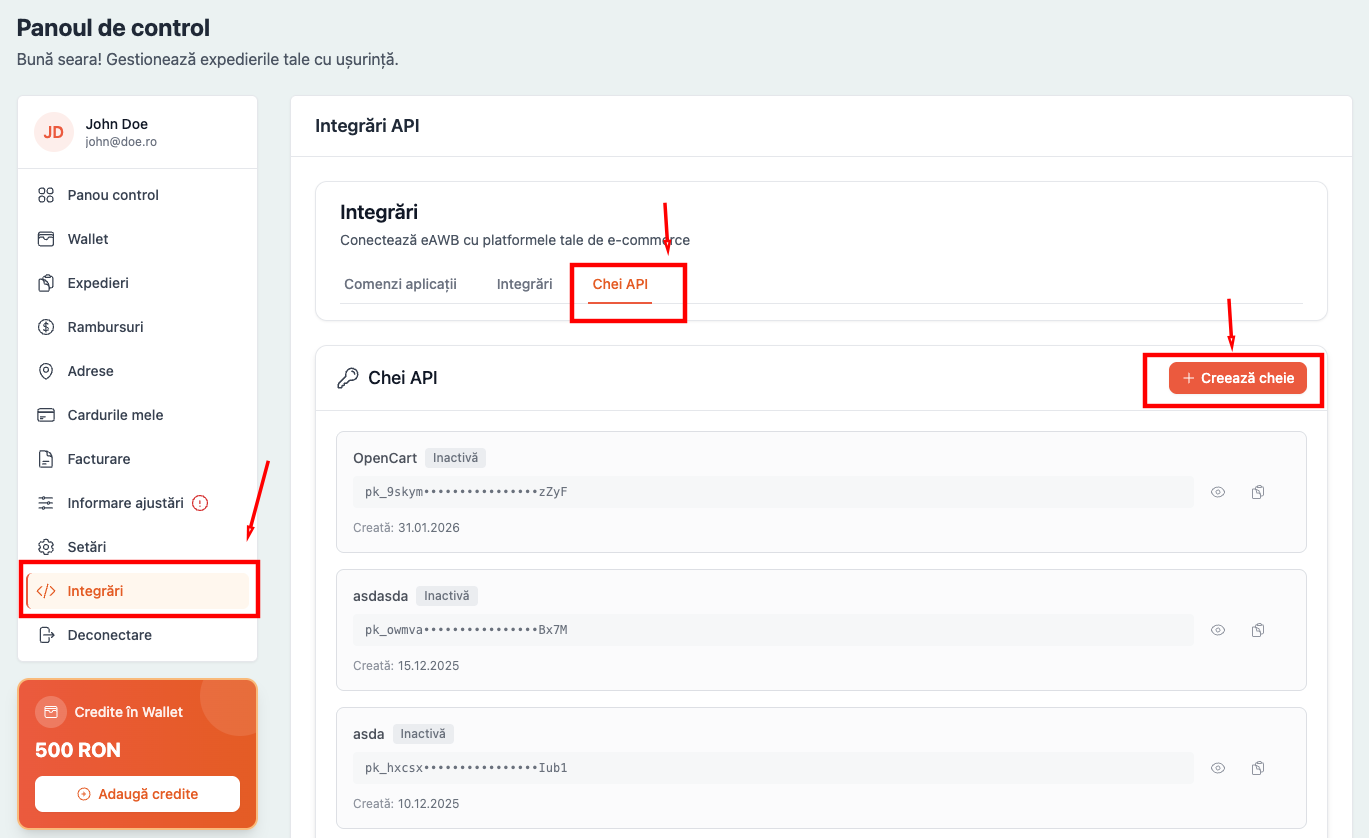
Navigate to Integrations → API Keys
Create a New API Key
Generate an API key for your OpenCart integration
Click the button to create a new API key. This key will be used to securely connect your OpenCart store with eAWB services.
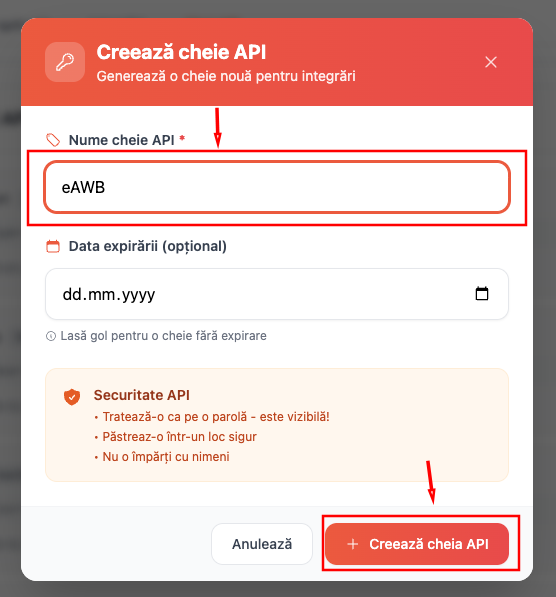
Create a new API key
Important
Keep your API key safe and never share it publicly. This key grants access to your eAWB account.
Copy the API Key
Save the API key for later use
Click the copy icon next to your newly created API key to copy it to your clipboard. You will need this key later when configuring the OpenCart module.
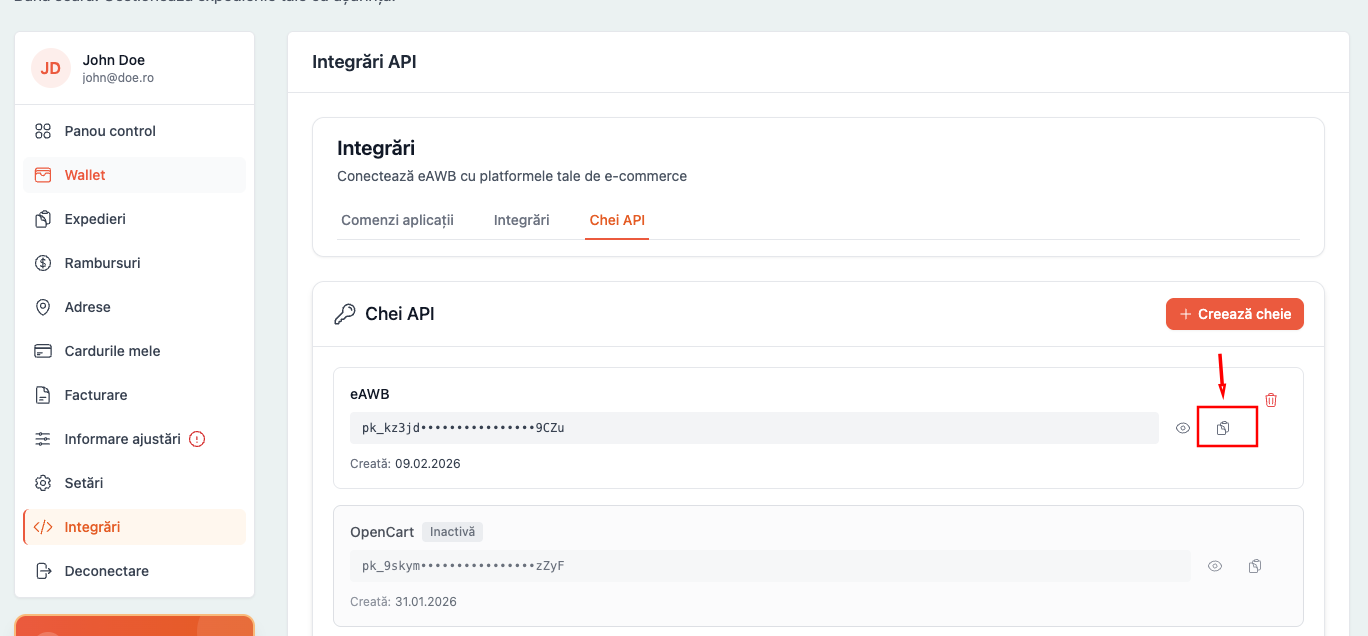
Copy the API key to clipboard
Important
Make sure to save the API key somewhere safe — you will need to paste it into the OpenCart module settings.
Access OpenCart Documentation
Navigate to the OpenCart integration docs
Go to the Integrări (Integrations) section, select the Integrări tab, find OpenCart in the available integrations and click Vezi documentația (View Documentation).
Go to Integrări (Integrations) in the menu
Select the Integrări tab
Find OpenCart in the list
Click Vezi documentația (View Documentation)
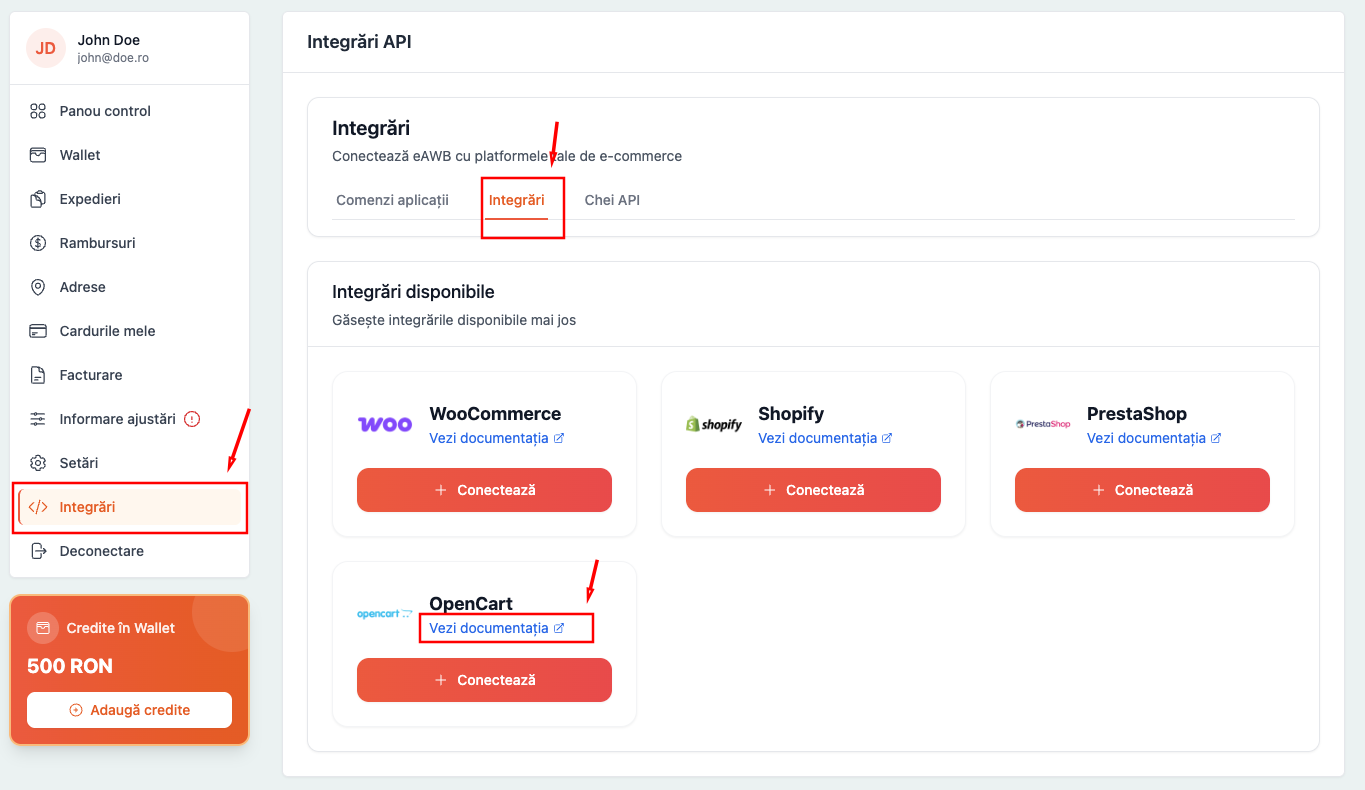
Click Vezi documentația on OpenCart
Upload the Module in OpenCart
Use the Extension Installer to upload the module
In your OpenCart admin panel, navigate to Extensions → Installer. Click the Upload button in the top right corner and select the downloaded europarcel.ocmod.zip file.
Go to your OpenCart admin panel
Navigate to Extensions → Installer
Click the Upload button (top right corner)
Select the europarcel.ocmod.zip file from your computer
Wait for the upload and installation to complete
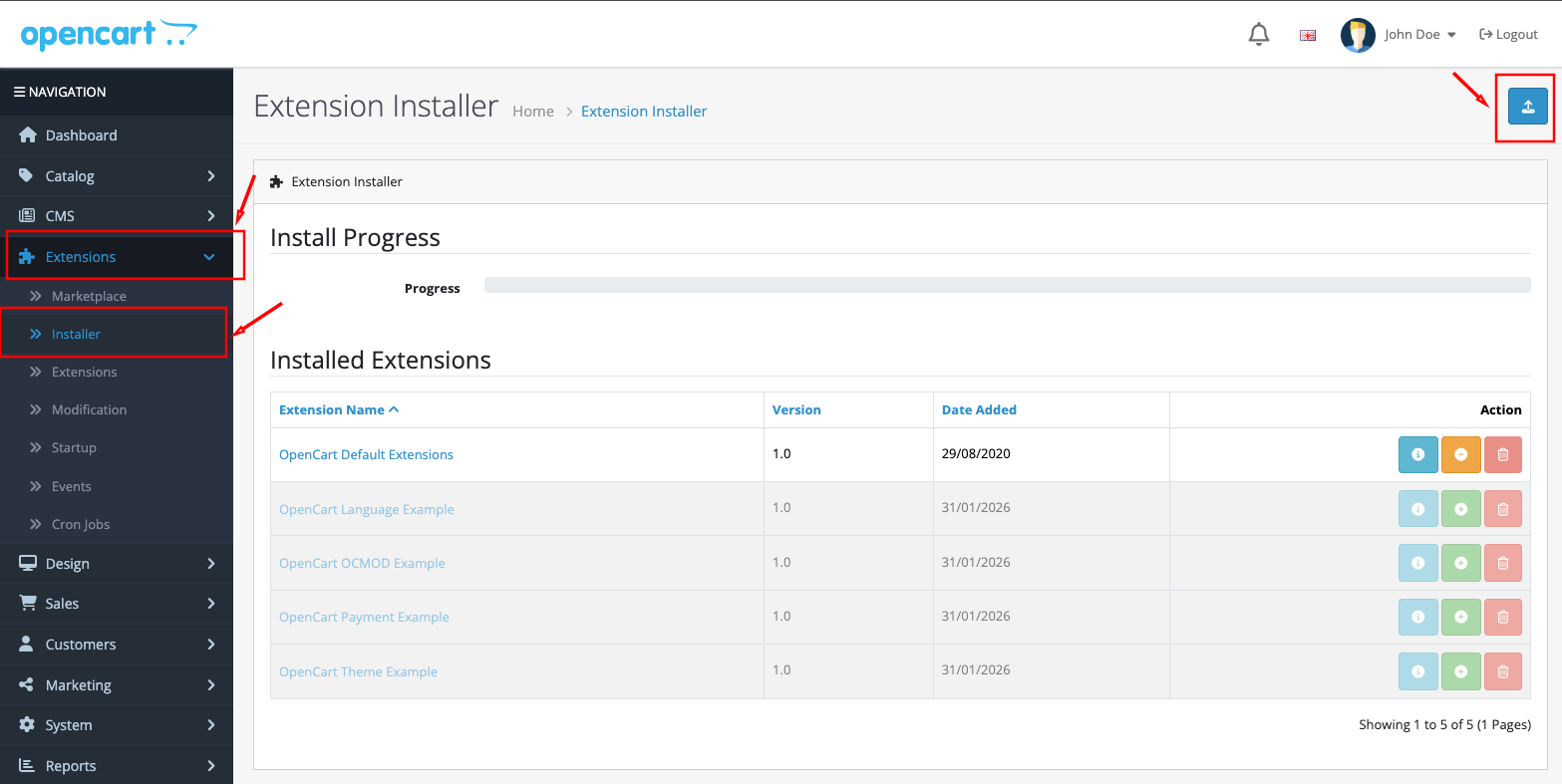
Upload the module via Extension Installer
Install the Module in Installer
Click Install to activate the uploaded module
After the upload completes, find the Europarcel Shipping Extension in the Installer list and click Install to activate it.
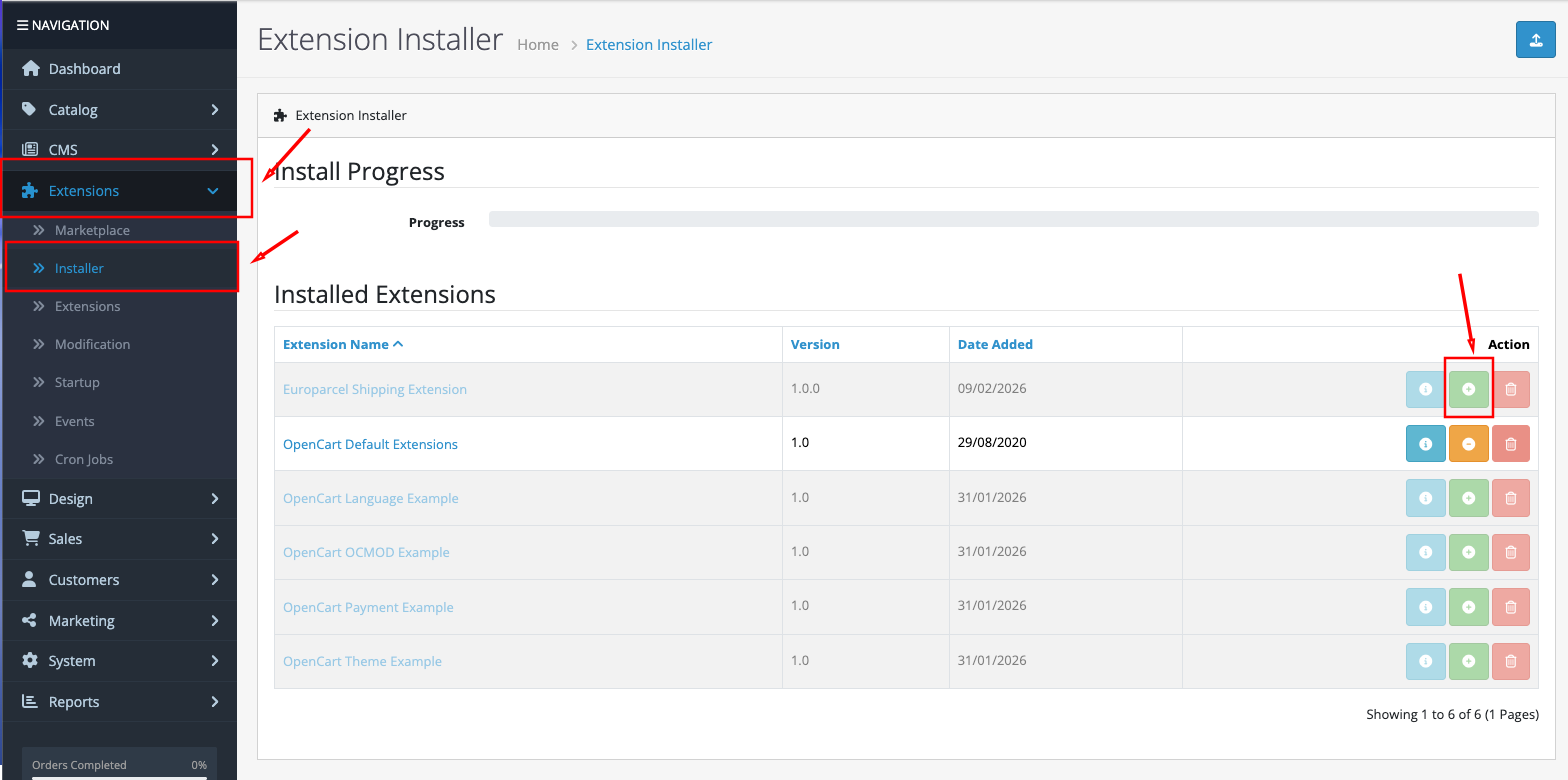
Install the uploaded module
Install the Europarcel Shipping Extension
Activate the extension from the Extensions list
Navigate to Extensions → Extensions, then in the "Choose the extension type" dropdown select Shipping. Find Europarcel Shipping in the list and click the green Install (+) button to activate it.
Go to Extensions → Extensions
In the dropdown "Choose the extension type" select Shipping
Find Europarcel Shipping in the list
Click the green + (Install) button
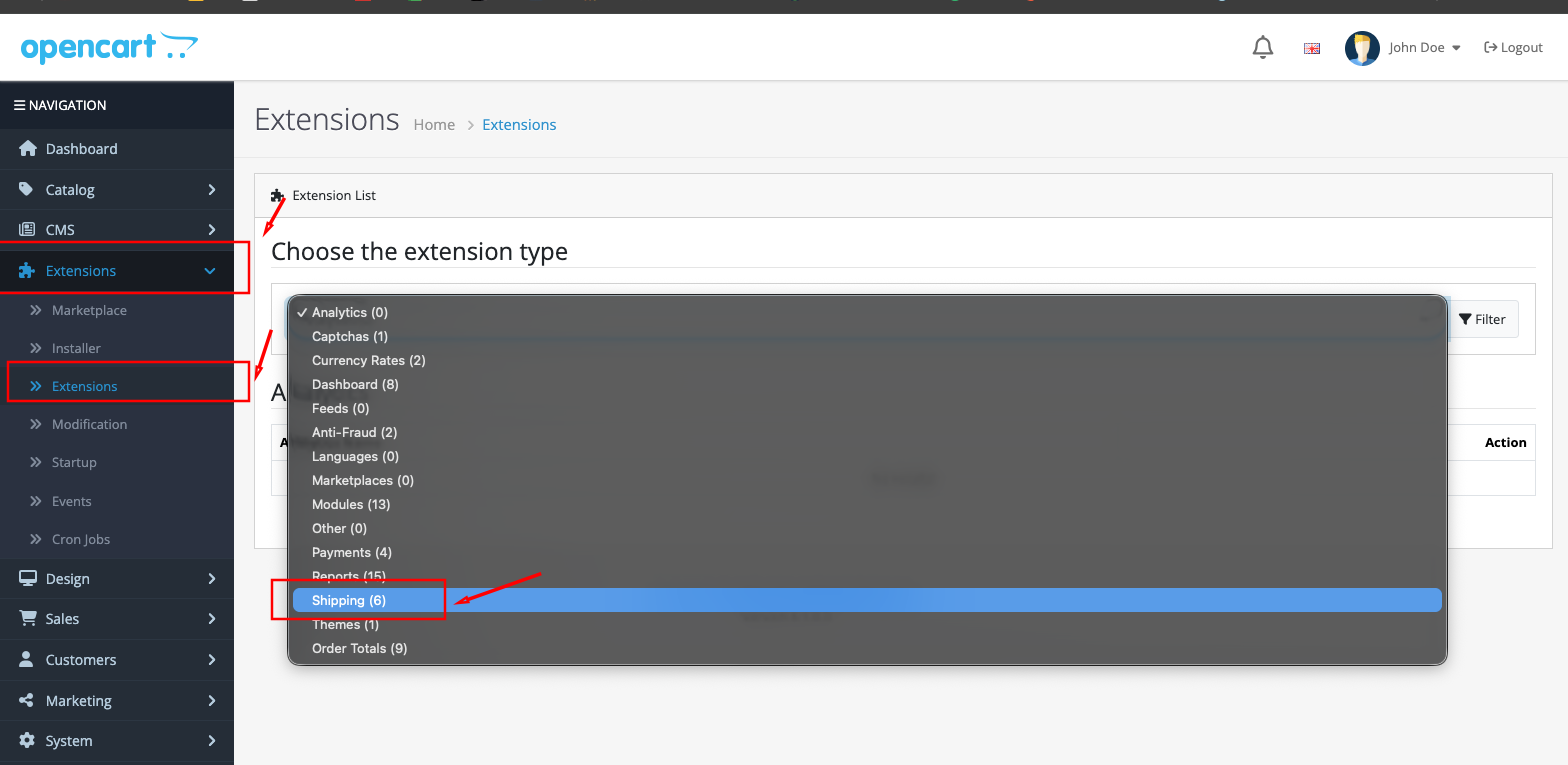
Install the Europarcel Shipping extension
Open Europarcel Shipping Settings
Access the module configuration
After installing, click the Edit (pencil icon) button next to Europarcel Shipping to open the full configuration panel.
API Integration
Connect your eAWB account
In the API Integration section, paste the API key you copied earlier in Step 3 into the API Key field. This establishes the secure connection between your OpenCart store and eAWB.
Find the API Key field in the API Integration section
Paste the API key you copied in Step 3
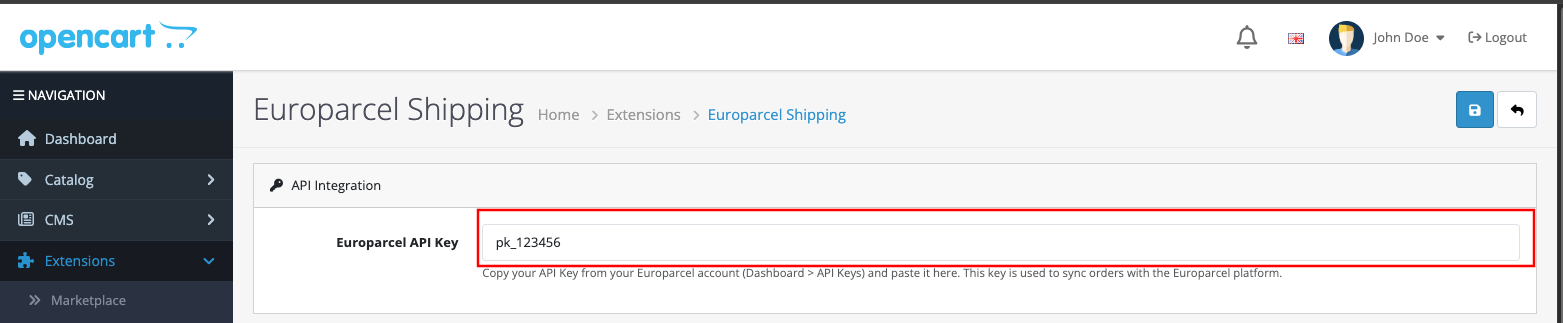
Paste your API key
Important
The API key is like a secure password that allows your OpenCart store to communicate with eAWB services.
General Settings
Configure module status and payment methods
In the General Settings section, make sure the Status is set to Enabled. Then in Cash on Delivery Payment Methods, select the payment methods for which the module should add ramburs (cash on delivery) to the shipment.
Set Status to Enabled
In Cash on Delivery Payment Methods, select the payment methods that should include ramburs (e.g., Cash on Delivery)

Configure General Settings
Tip
Only select payment methods where the courier needs to collect money from the customer upon delivery.
Home to Home Settings
Configure address-to-address delivery options
In the Home to Home Settings section, configure all the home delivery options that your customers will see at checkout.
Set Home Delivery Status to Enabled
Enter a Display Title (e.g., "Livrare la domiciliu") — this is what customers see at checkout
Set the Shipping Cost (fixed cost for home delivery)
Choose the Default Courier — when importing orders back in eAWB, this carrier will be auto-selected
Select the Tax Class (e.g., Taxable Goods)
Set Geo Zone (e.g., All Zones)
Set Sort Order to control display position at checkout
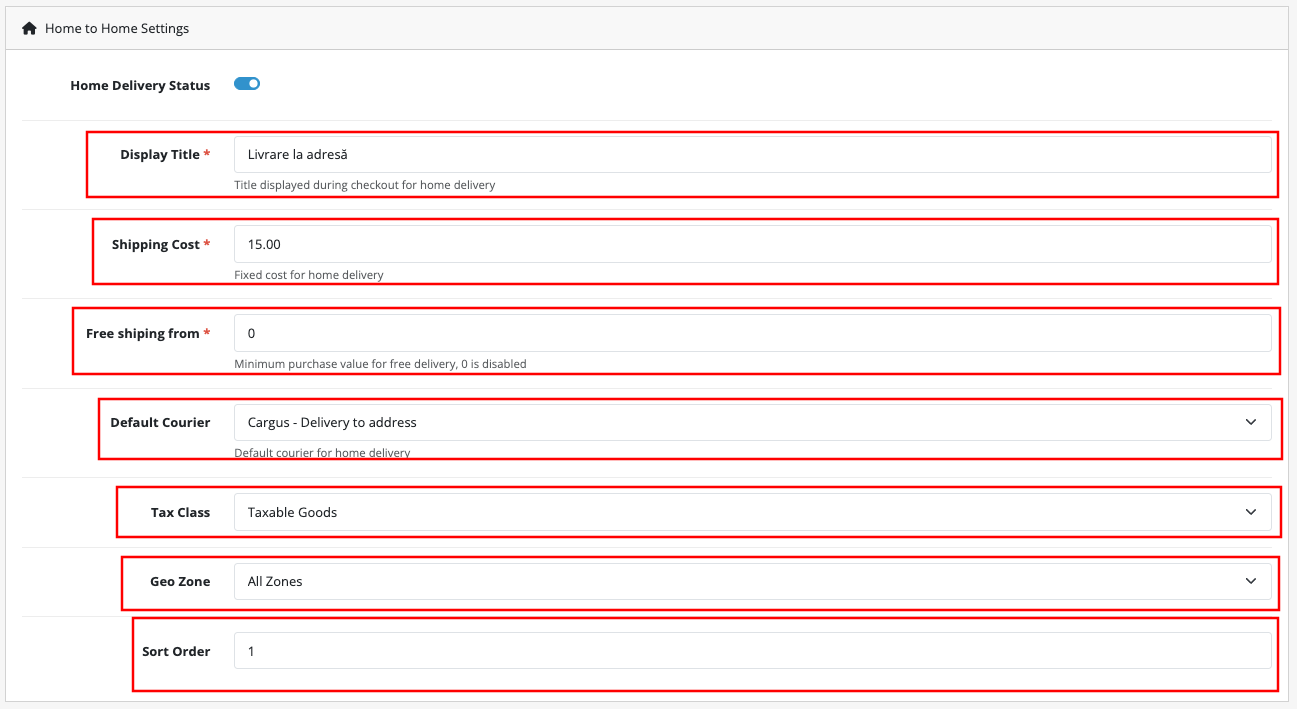
Configure Home to Home delivery
Home to Locker Settings
Configure locker delivery options
In the Home to Locker Settings section, configure the locker delivery options. This allows customers to choose delivery to a nearby locker (easybox, FANbox, DPD Box, etc.).
Set Locker Delivery Status to Enabled
Enter a Display Title (e.g., "Livrare la locker") — visible to customers at checkout
Set the Shipping Cost (fixed cost for locker delivery)
Set Free Shipping From threshold (minimum purchase value for free delivery, 0 to disable)
Select Available Couriers for locker delivery (SAMEDAY easybox, FAN Courier FANbox, DPD Box, Cargus)
Select the Tax Class (e.g., Taxable Goods)
Set Geo Zone (e.g., All Zones)
Set Sort Order to control display position at checkout
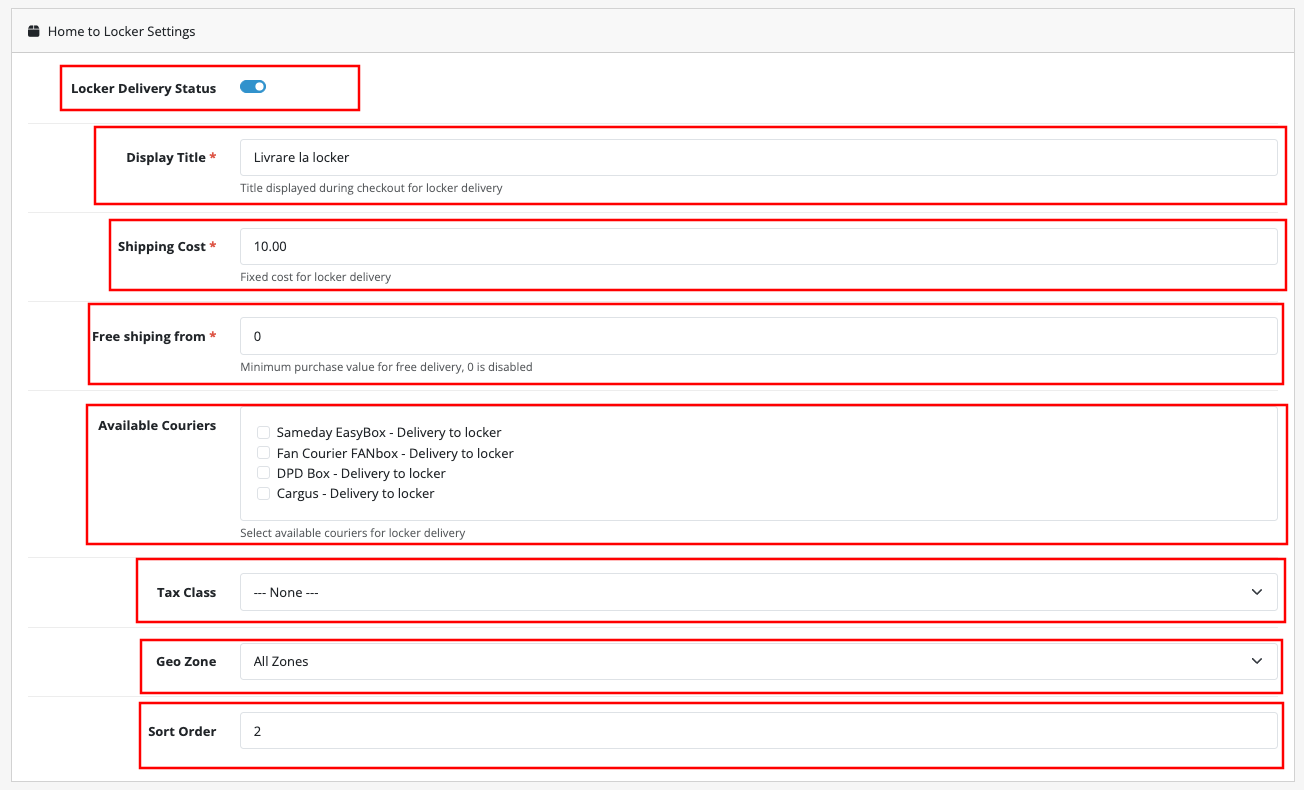
Configure Home to Locker delivery
Tip
Locker delivery is often more cost-effective and convenient for customers. Consider offering a lower price or a lower free shipping threshold for locker deliveries to encourage usage.
Save Configuration
Apply all settings
Click the Save button (top right) to apply all your configuration. Your OpenCart store is now fully configured with eAWB shipping services.
Review all settings one more time
Click the Save button to apply changes
Go to your store checkout to verify shipping options appear correctly
Test with both home delivery and locker delivery options
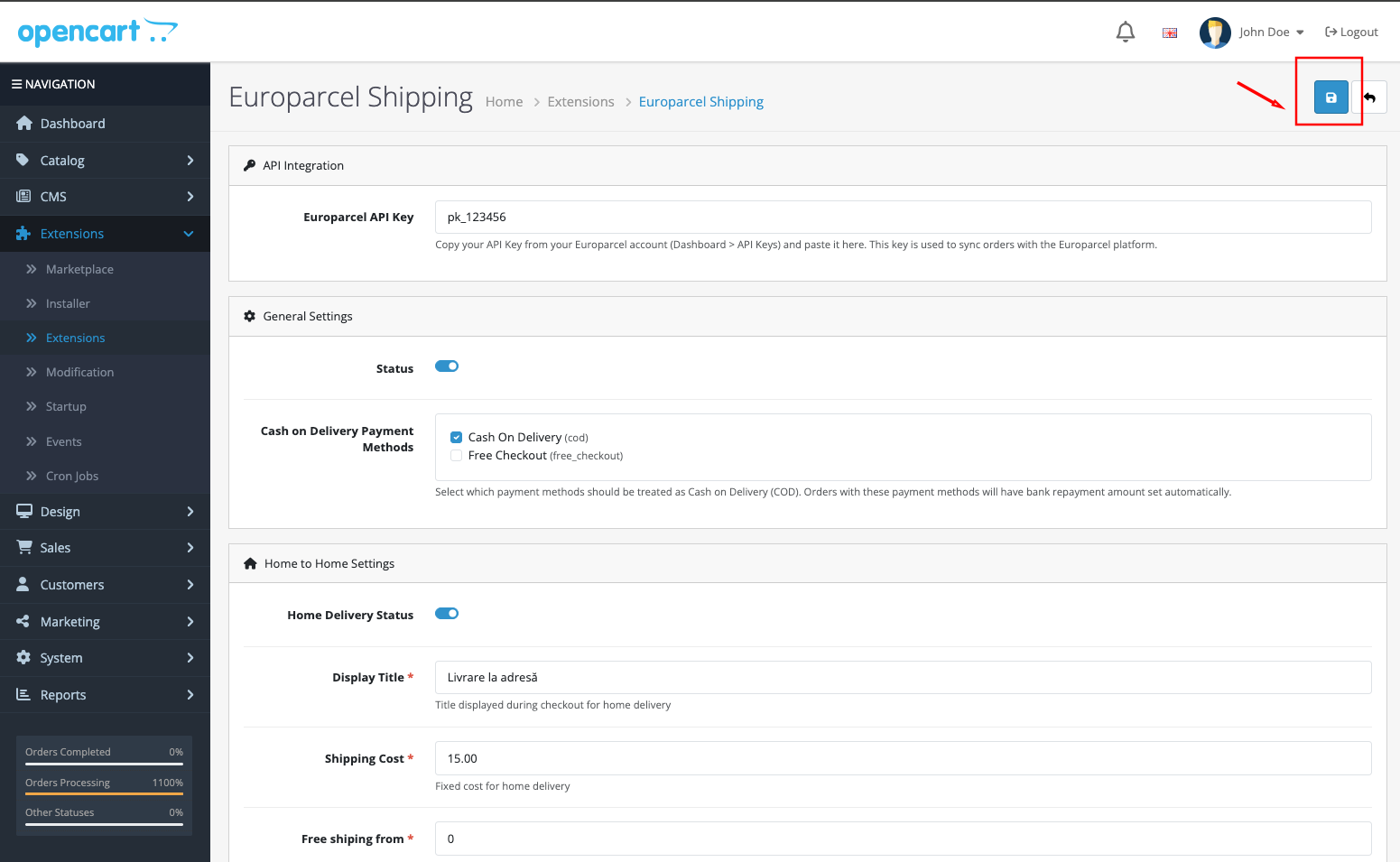
Save all settings
🎉 Congratulations! Your OpenCart store is fully integrated with eAWB
You have successfully installed and configured the eAWB OpenCart module. Your customers can now enjoy seamless shipping options at checkout, and you can automate your entire fulfillment process directly from your OpenCart dashboard.